
The PlotFable Guide
A story, in PlotFable, is a sequence of beats — one thing that happens after another. Scenes, chapters and acts are built around them; storylines, characters and places are hung on them; and five views show the same sequence from five sides.
The guide has independent parts. Part I teaches you the app in about fifteen minutes, starting from an empty window. Part II goes through the five views one by one. Read Part I first; dip into Part II when you need it.
Building a story
From an empty window to a story with acts, scenes and a setup that pays off.
Start a story
Choose File › New Story… (⇧⌘N), or click New Story… in the welcome window. The window that opens has Blank Story at the top, already selected — press ↩ and you are writing. Below it are eight structures; choose one to start with its acts and one beat per stage, already laid out. Structures are covered in Part III.
⌘N skips the choice and starts a blank story straight away.
Beats
A beat is one thing that happens: “Danglars writes the denunciation.” Not a chapter, not a scene — the smallest event that moves the story.
- Add a beat with ⌘↩. It goes right after the selected beat, in the same lane; with nothing selected, at the end of the first lane. You can also right-click a lane and choose Add Beat Here.
- Write it. Double-click a card to open its editor — title and synopsis — and close it with ⌘W or Done. The inspector (next section) edits the same fields.
- Move it. Drag a card left or right to change when it happens, or up and down to change its lane.
- Select several by ⌘-clicking or ⇧-clicking, or by dragging a box around them on empty space.
- Delete with ⌫. Everything can be undone with ⌘Z.
The order of the cards from left to right is the order of the story. There is no separate list to keep in step: every other view reads the same order.
Lanes
A lane is a horizontal band for one thread of the story — the main plot, the B story, a character's journey. A new story has two: Main Plot and B Story.
- Add a lane from Lanes in the toolbar, or by right-clicking empty space.
- Rename it, or change its colour, by selecting it and using the inspector.
- Hide a lane from the Lanes menu, or right-click it and choose Hide Lane. Hidden lanes keep their beats; they just step out of sight.
- Reorder lanes with Move Lane Up and Move Lane Down.
Beats in different lanes can happen at the same moment: drop a card in the gap under another lane's card and they share the same point in the story.
Scenes
A scene groups beats that belong together — the same place, the same stretch of time.
- Select the beats and press ⌘G (Convert to Scene). The scene gets a frame and a title you can edit.
- Drag a beat into a scene to add it, or out of it to take it out. Right-click a scene for Add Beat to Scene, Ungroup and Merge Scenes; right-click a beat inside it for Split Scene Here.
- Dragging a scene moves all its beats together.
Acts and chapters
Acts, chapters, episodes and sections are breaks: markers between two beats, not boxes that hold them. That is why you can move them freely without rearranging anything.
- Select the beat that should open the new act or chapter.
- Choose Add Break in the toolbar, and the kind of break.
- Rename it in the inspector.
Breaks appear as dashed lines across the whiteboard, with their names along the top. Drag a break's name to slide it to another point in the story; select it and press ⌫ to remove it. The Outline in the sidebar lists acts and chapters, and clicking one takes you there.
Causality: setups and payoffs
The heart of a plot is not what happens next but what makes it happen. PlotFable lets you say so.
- Link a setup to its payoff: hold ⌥ and drag from the setup's card to the payoff's card. An arrow joins them.
- Or right-click the setup and choose Start Dependency Here, then right-click the payoff and choose Must Happen After….
- In the inspector's Causality section, write why in a few words — “the gun in the drawer” — and it appears on the arrow.
If you ever move a payoff before its setup, the arrow and both cards turn red: that is a plot error. The inspector shows which link is broken, and Go to takes you to the other end.
Links come in several kinds — clues, red herrings, foreshadowing, dramatic irony, callbacks. They are covered in Part III; for now, every link is a setup and its payoff.
The inspector
Press ⌥⌘I to show or hide the inspector on the right. It shows whatever is selected — a beat, a scene, a break, a lane, a storyline, a character or a place — and edits it.
For a beat, it holds:
| Field | What it is for |
|---|---|
| Title and synopsis | What happens, in a line and in a paragraph |
| Plot point | One of ten classic turning points — Inciting Incident, Midpoint, Climax… — shown as a diamond everywhere |
| Stage | The stage of the chosen structure this beat stands for (only when the story has one) |
| Device | A promise the beat makes: Chekhov's Gun, Red Herring or Twist (Part III) |
| Status | Idea, Draft or Done — how finished the beat is |
| Length | Pages or minutes, for the timeline's By Length view |
| Characters and place | Who is in it and where it happens |
| Tags | The storylines and themes it belongs to |
| Causality | What it sets up and what it pays off |
Characters, places and storylines
The sidebar on the left lists everything the story is made of.
- Characters and Places: add them with +, or from the inspector with New Character Here and New Place Here, which also put them in the selected beats. Each character has a full sheet — portrait, role, wants and needs, flaw, arc, relationships — opened with the pencil beside their name.
- Tags follow a thread through the story: a storyline, a theme, a running gag, a MacGuffin. Put a beat on a tag from its inspector.
- Click a character, place or tag in the sidebar and the whiteboard steps back, leaving only the beats it appears in. Click empty space to bring everything back.
The library
Not every idea belongs in the story yet. Right-click a beat or a scene and choose Move to Library: it leaves the sequence but stays in the file, listed under Library in the sidebar. To bring it back, select it there and choose Put Back in Story in the inspector.
Library beats are ignored by every view and check: they cannot cause plot errors.
Saving
A story is a single .plotfable file. Save with ⌘S and keep it anywhere — in iCloud Drive or Dropbox if you want it on another Mac. Recent stories are listed in File › Open Recent and in the welcome window.
Pictures you add to characters and places are stored inside the file, so a story always travels whole.
Keyboard reference
| Action | Keys |
|---|---|
| New story (blank or from a structure) | ⇧⌘N |
| New blank story | ⌘N |
| Add a beat after the selection | ⌘↩ |
| Group the selected beats into a scene | ⌘G |
| Link a setup to its payoff | ⌥-drag |
| Delete the selection | ⌫ |
| Undo / redo | ⌘Z / ⇧⌘Z |
| Show or hide the inspector | ⌥⌘I |
| Whiteboard · Timeline · Emotions · Table · Relationships | ⌘1 … ⌘5 |
| Zoom out · actual size or fit · zoom in | ⌘- · ⌘0 · ⌘= |
| Close an editor or a sheet | ⌘W |
| Export the outline as PDF | ⇧⌘E |
| Export the current view as PDF | ⌥⇧⌘E |
| Print the current view | ⌘P |
| Save | ⌘S |
The five views
One story, seen from five sides. Every view edits the same beats.
Whiteboard
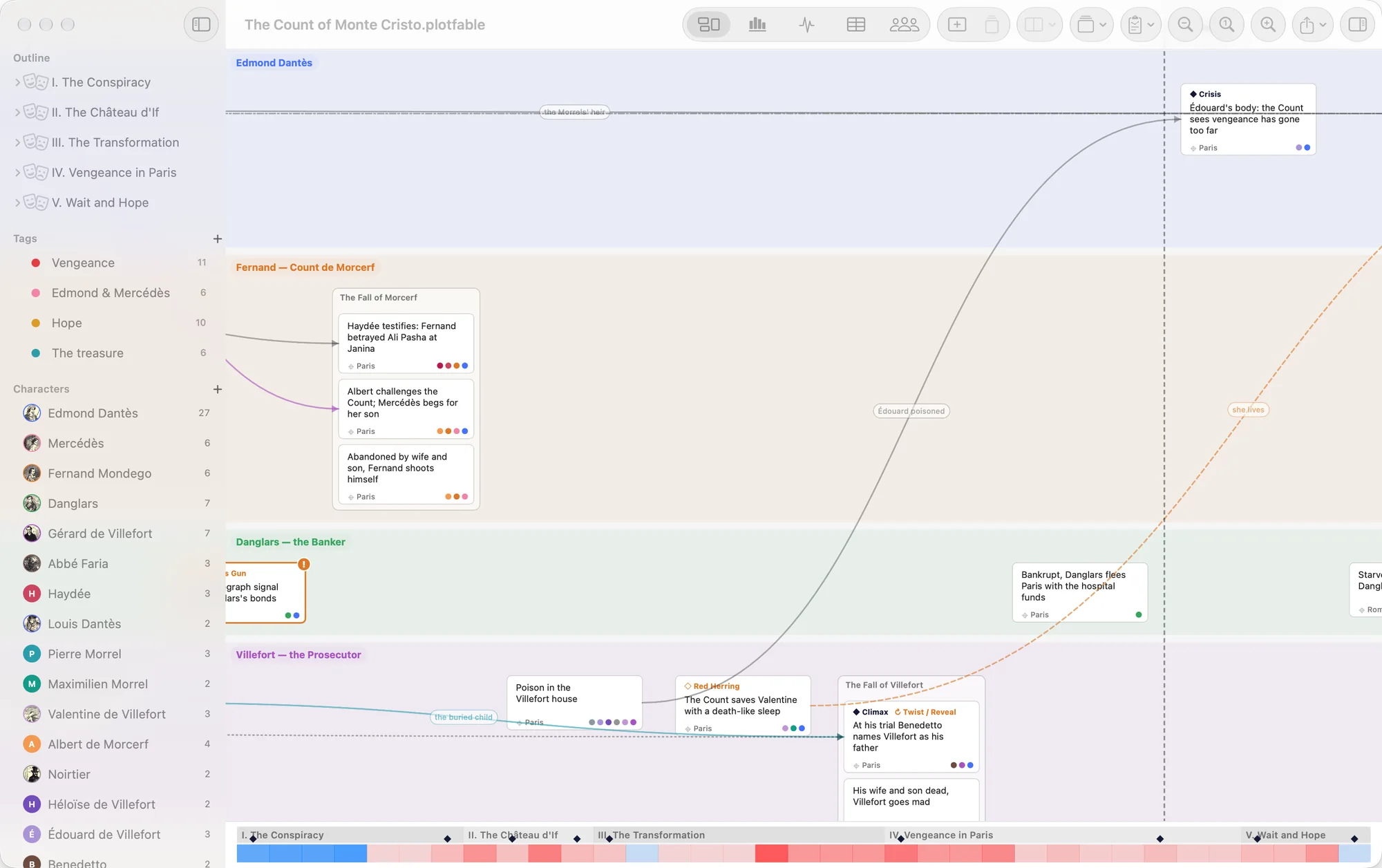
The whiteboard (⌘1) is where most of the building happens, and Part I has already walked through it. A few things that make it easier on a long story:
- Zoom changes what you see, not just how big it is. Zoomed far out (⌘- or pinch), cards show only their titles, tinted by lane — the shape of the whole story. Zoomed in, each card shows its synopsis too. ⌘0 returns to actual size.
- Lane names stay in view at the left edge as you scroll along.
- Select a tag in the sidebar and a line threads through its beats, so you can follow one storyline across all the lanes.
- The mini-timeline along the bottom shows the whole story at once — acts, plot points, errors. Click anywhere on it to jump there.
Timeline
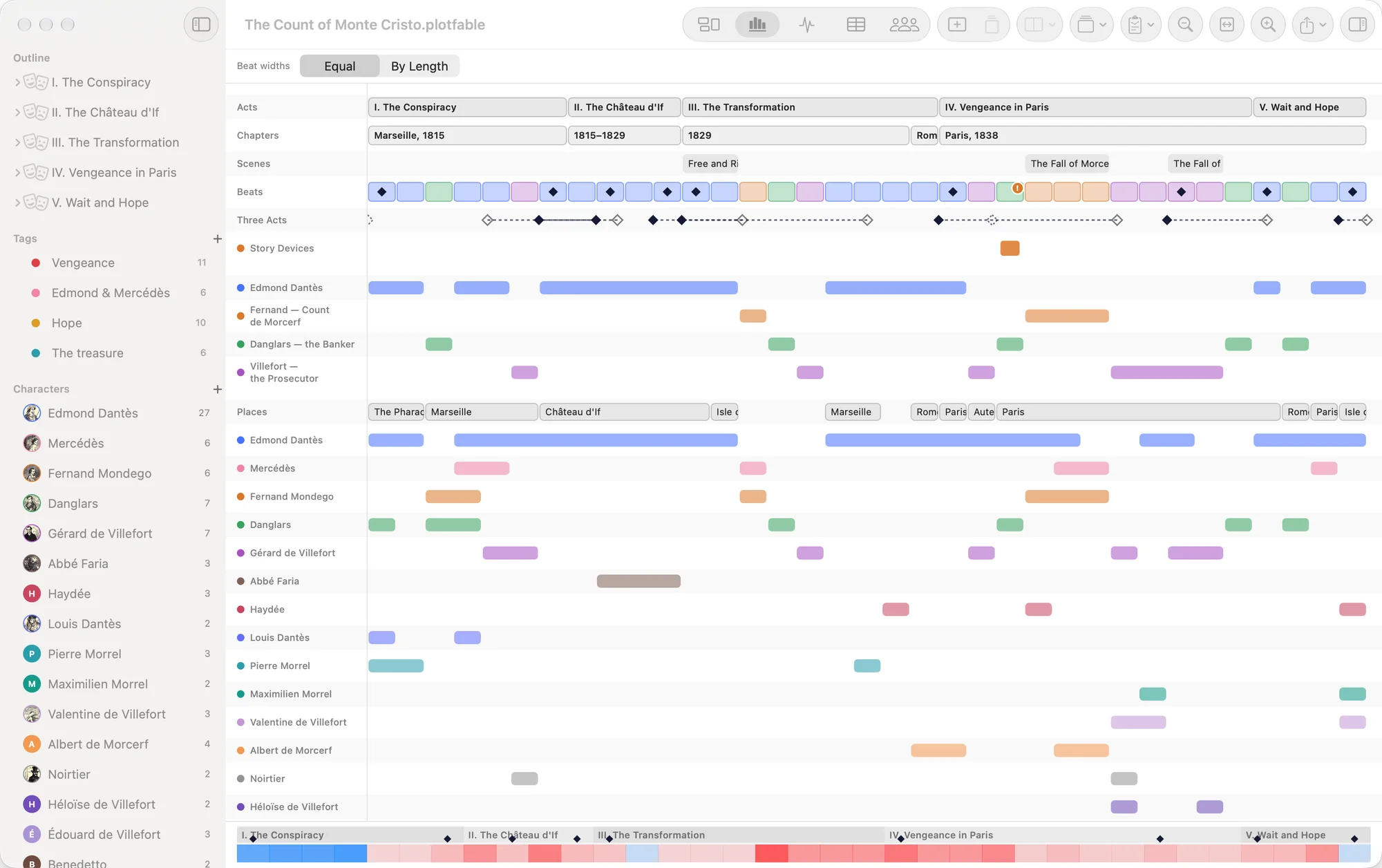
The timeline (⌘2) lays the story out as horizontal tracks: acts, chapters and scenes at the top, then the beats, then one track for every lane, place, character and storyline. It is the quickest way to see who disappears for too long, which places dominate, and how the acts are balanced.
- Beat widths: Equal gives every beat the same width. By Length makes each beat as wide as its length in pages or minutes, set in the inspector — the timeline then shows the real proportions of the story.
- Structure: choose a structure from Structure in the toolbar and a track shows where it expects each stage (hollow diamonds) next to where your story puts it (filled diamonds), with a line between them.
- Plot Errors and Story Devices tracks appear under the beats whenever something needs attention.
- Click any bar to select it; double-click to open it; right-click a beat for Show in Whiteboard or to set its plot point.
- ⌘0 fits the whole story to the window; ⌘= zooms in.
Emotions
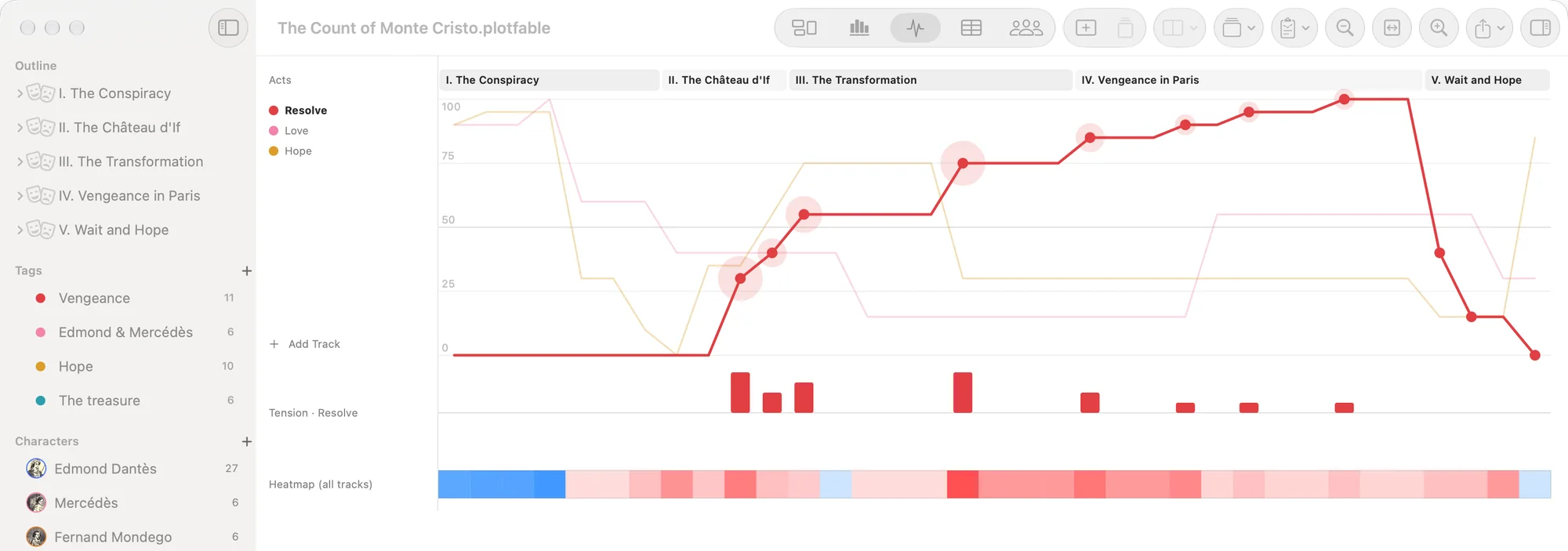
The emotions view (⌘3) charts how a storyline feels over time: trust between two characters, danger, hope, love — whatever you choose to measure, from 0 to 100.
- Click Add Track, or select a tag and switch on Track emotion in its inspector. Give it a name for what it measures — Trust, Danger.
- Click a track's name to make it the active curve.
- Drag the curve up or down at any beat to set its value there. The value holds until it next changes, so you only mark the moments that matter.
Under the curves, tension bars show where each storyline is tense. The track's inspector offers seven kinds of automatic tension — when the value is low, when it is high, when it rises, when it falls, before a rise, before a fall, or while it stands still — and right-clicking a beat adds extra tension by hand. The heatmap at the bottom adds up all the tracks, so the story's quiet and loud stretches show at a glance.
Table
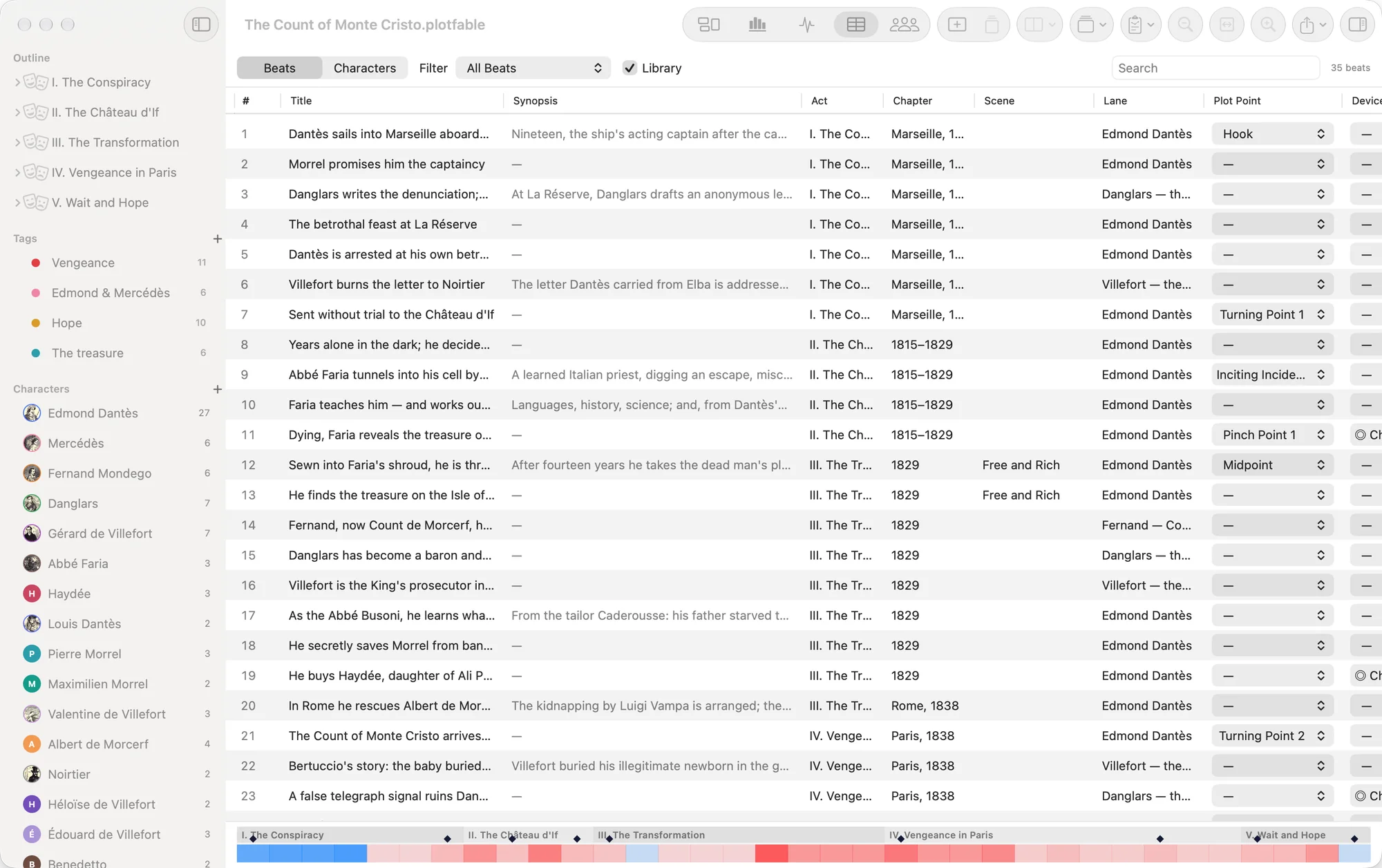
The table (⌘4) lists every beat — or, with the Characters tab, every character — as a row.
- Edit in place: titles, synopses, plot points, story devices, status and lengths can be changed right in the grid.
- Sort by clicking a column's title; search with the field at the top right.
- Filter to find what is missing: beats Without a Place or Without Characters, beats that are Still Ideas, or only the Plot Points and Story Devices. The Library checkbox adds the beats parked in the library.
- Right-click a row and choose Edit… to open it.
Relationships
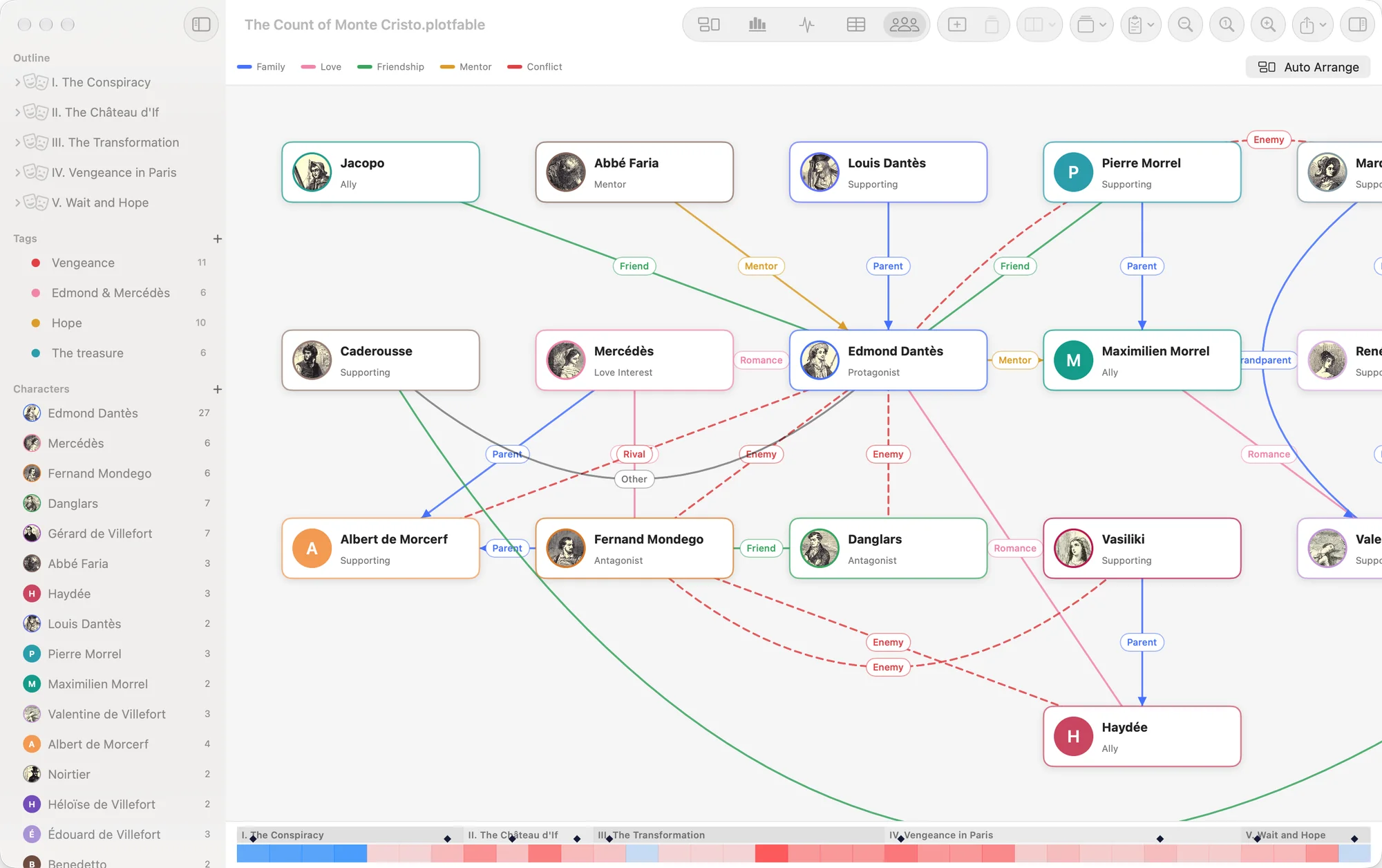
The relationships view (⌘5) draws the cast as a map: family, love, friendship, mentors and enemies, each in its own colour.
- Open a character's sheet — the pencil beside their name in the sidebar, or double-click their card on the map.
- In Relationships, click Add Relationship, choose the kind — parent of, in love with, enemy of… — and the other character, and add a note if you like.
- The tie appears on the map, and in the other character's sheet too, the other way round.
Drag cards to arrange the map by hand. Auto Arrange lays it out for you: families as blocks, parents above children, partners side by side, everyone else beside the person they are most tied to. Click a card to see only that character's ties; click empty space to see everyone again.
Export and print
When the plan is ready, take it where you write.
| To get… | Choose |
|---|---|
| An outline for a screenwriting app | File › Export As › Fountain Outline… |
| An outline as text | File › Export As › Markdown Outline… |
| An outline to read or print, with characters and places | File › Export As › PDF Outline… (⇧⌘E) |
| The beats or the characters as a spreadsheet | File › Export As › … Spreadsheet (CSV)… |
| A picture of the view you are looking at | The Export button in the toolbar: PDF (⌥⇧⌘E) or PNG Image |
| The view on paper | Print… (⌘P) |
Exported views show the whole board, not just the part on screen, under a header with the story's title — always in light colours, as on paper. The table prints as pages of rows.